

Corporate tax, without the guesswork.
Prepare, check and transmit your corporate returns from one place — CRA-certified, on every platform, and free until you file.














Certified programs
CRA-certified for all your filing needs
AuraTax is certified by the Canada Revenue Agency (CRA) to file the following programs. Our software is regularly updated to meet the latest CRA requirements and specifications.
Corporate Income Tax Return
Alberta Corporate Income Tax Return
Quebec Corporate Income Tax Return
Statement of Trust Income Allocations and Designations
Foreign Income Verification Statement
Information Return Relating to Controlled and Non-Controlled Foreign Affiliates
Information Return of Non-Arm's Length Transactions with Non-Residents
Country-by-Country Report
Business Consent for Offline Access and Its Cancellation
Cross-platform
Get a seamless experience across your devices,
from the comfort of your home, or in transit
Prepare your return for free, pay only to transmit
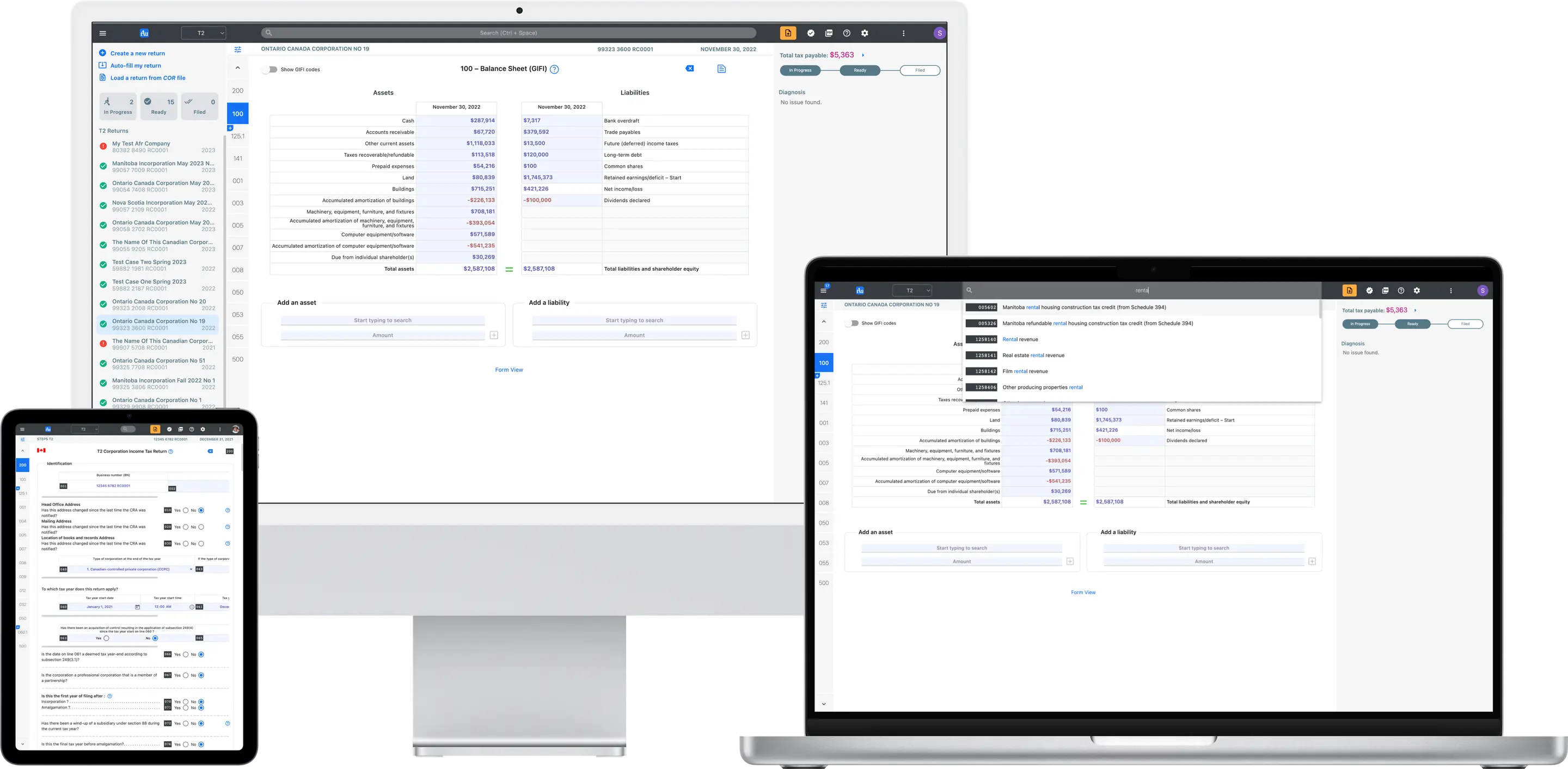
Working in the cloud
Work from anywhere, even on an alien's computer.
Sign in to AuraTax with your existing Google or Apple account, and pay for the service through PayPal
Core features
Everything you need for corporate tax
From data entry to submission, AuraTax streamlines every step of the corporate tax filing process.
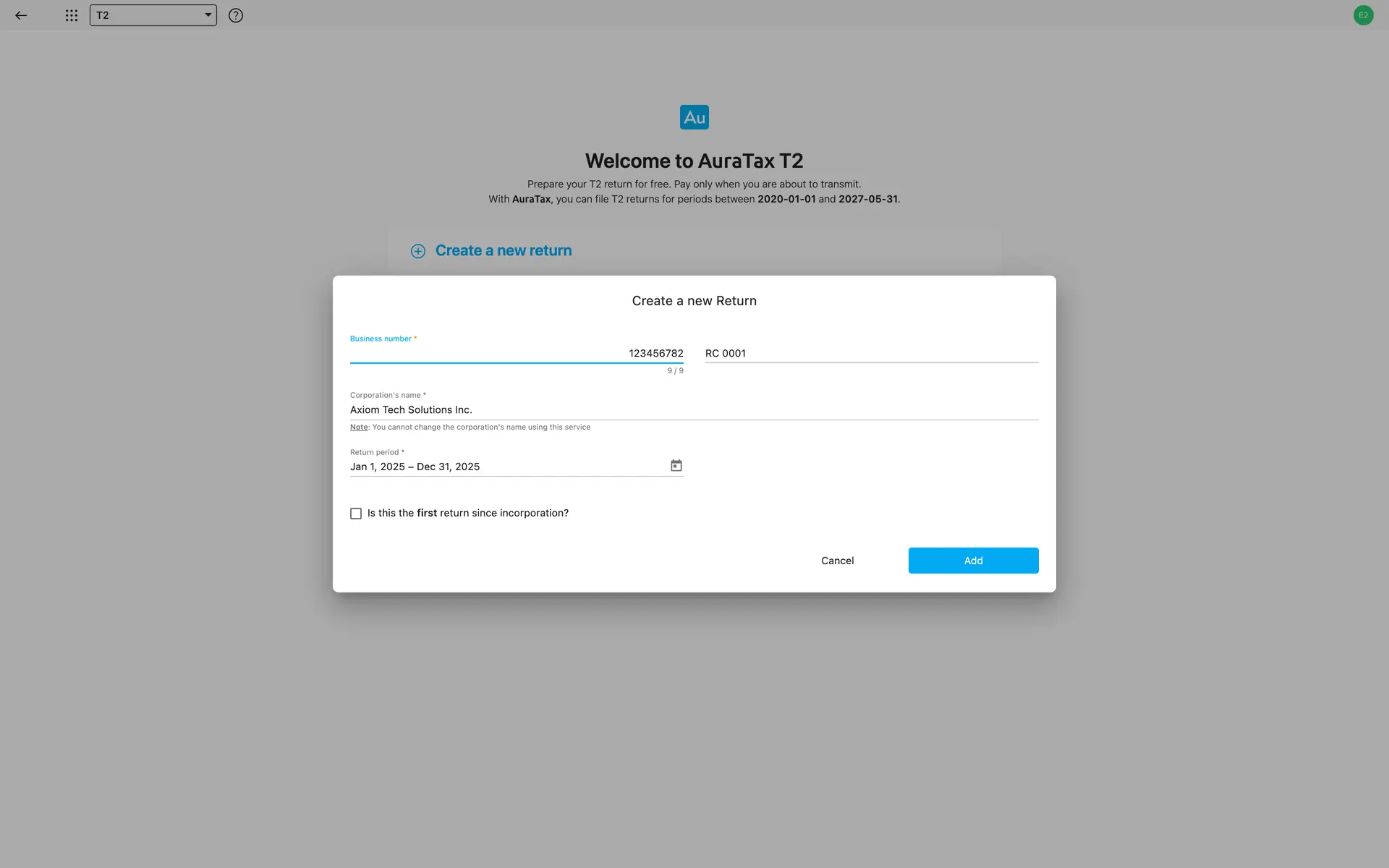
Creating returns
AuraTax offers four ways to create a new return
Auto-fill your return
Use AuraTax to retrieve your previous years' returns from CRA (Canada Revenue Agency) records, then roll over your return to the next reporting period
Create a return from scratch
Fill in the corporation's identification and reporting period information
Load a COR file
Load and roll over your return from a COR file generated by other software
Bring it over from Bookkeeping
Close a period in AuraTax Bookkeeping and it opens the T2 or CO-17 for you, with the period's totals already entered against their GIFI codes
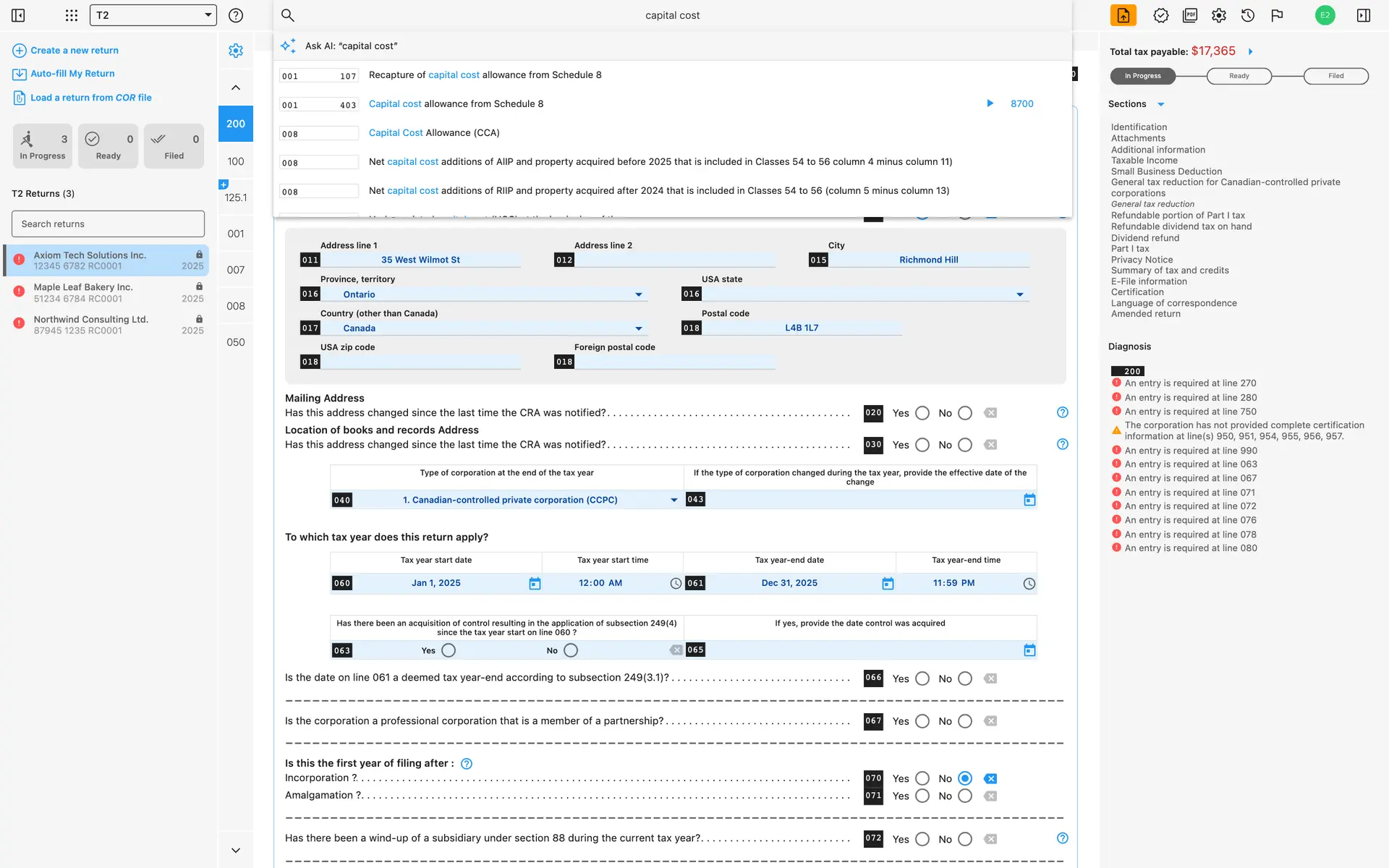
Full-depth search
Reach any form or field without knowing where it lives — by name, by value, even auto-calculated ones. Ctrl+Space opens the box, and Ask AI takes it from a half-remembered name to the right line.
Selecting an item in the search result list will navigate to the Form and set the focus on the Input element
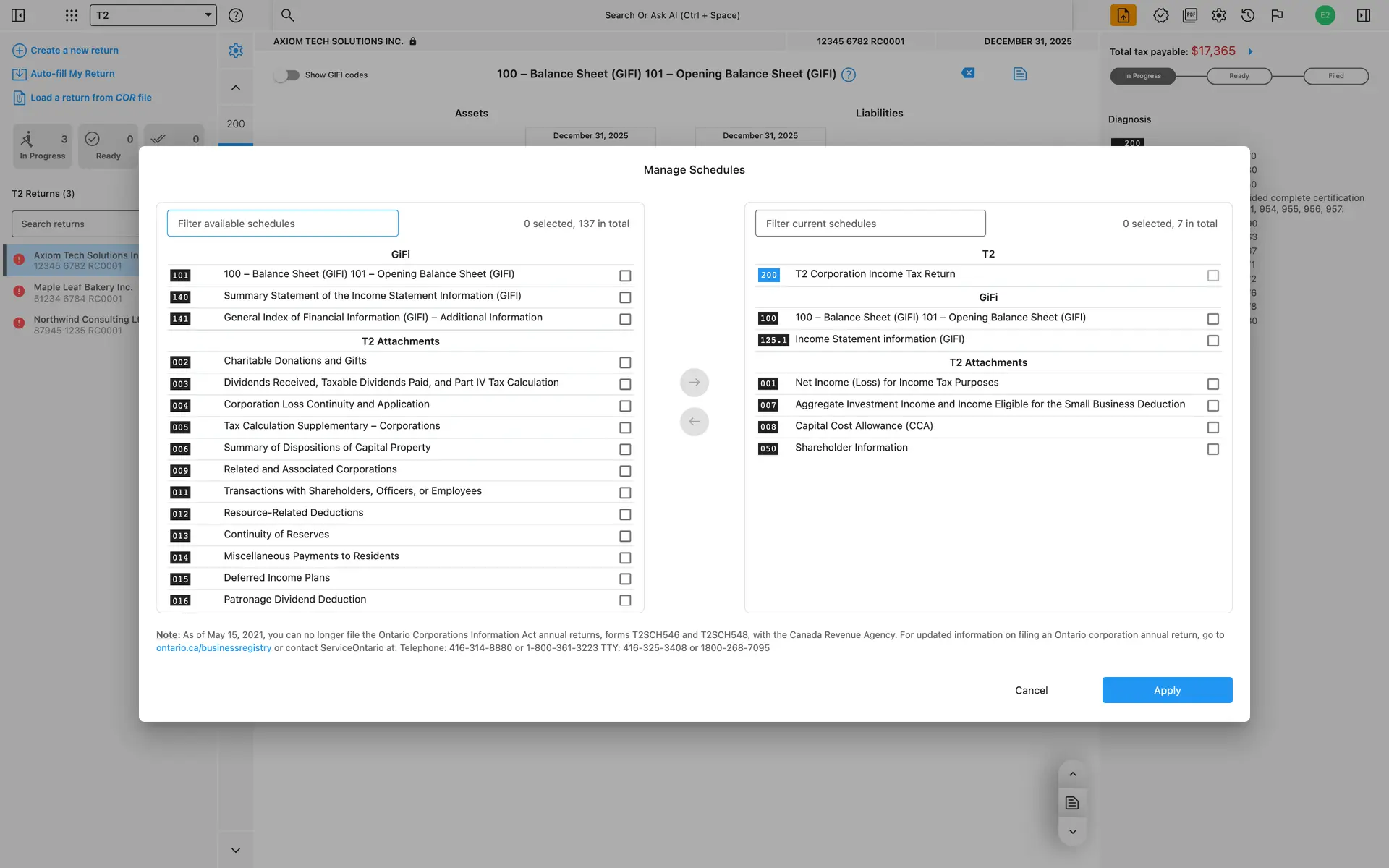
Add or remove forms
Open the form manager to add forms to your return, or to remove them.
Where possible, AuraTax will automatically add mandatory forms to your return. This means form management is handled by the system in most cases.
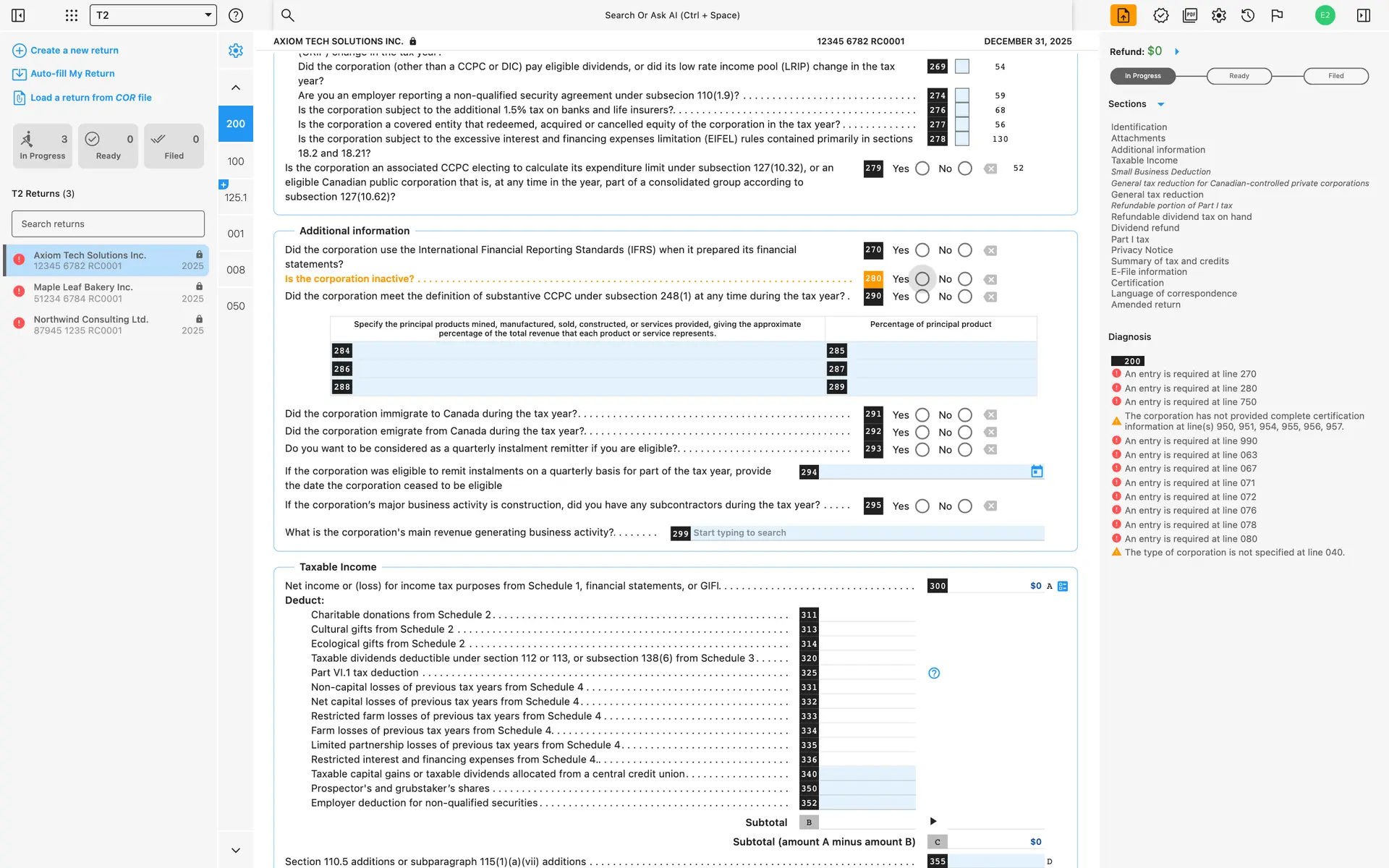
Fix validation errors faster
Click an error message to jump straight to the form it came from, with the offending field already focused.
The system is designed to prevent you from transmitting erroneous data
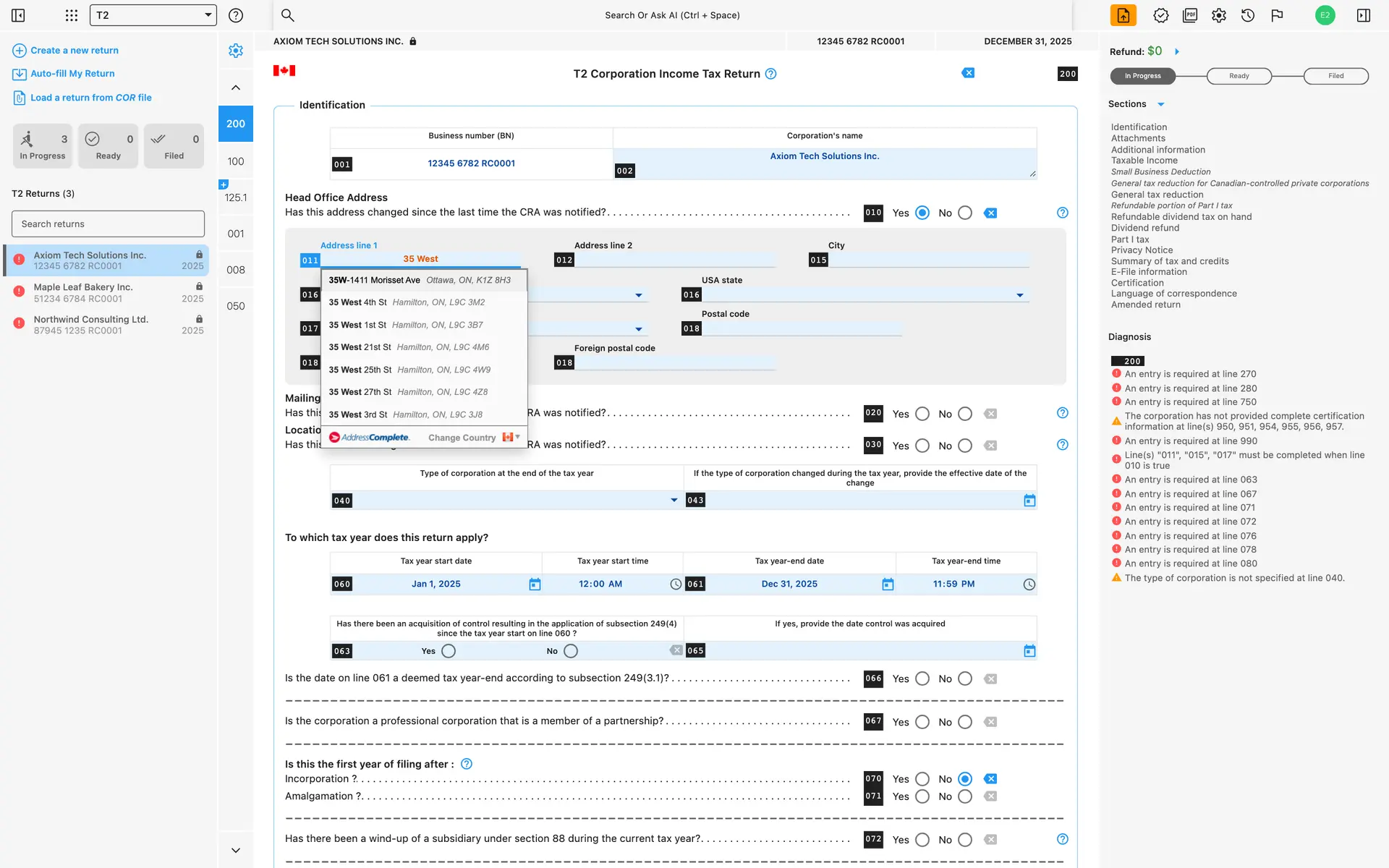
Auto-complete addresses
Get suggestions from Canada Post when filling in addresses
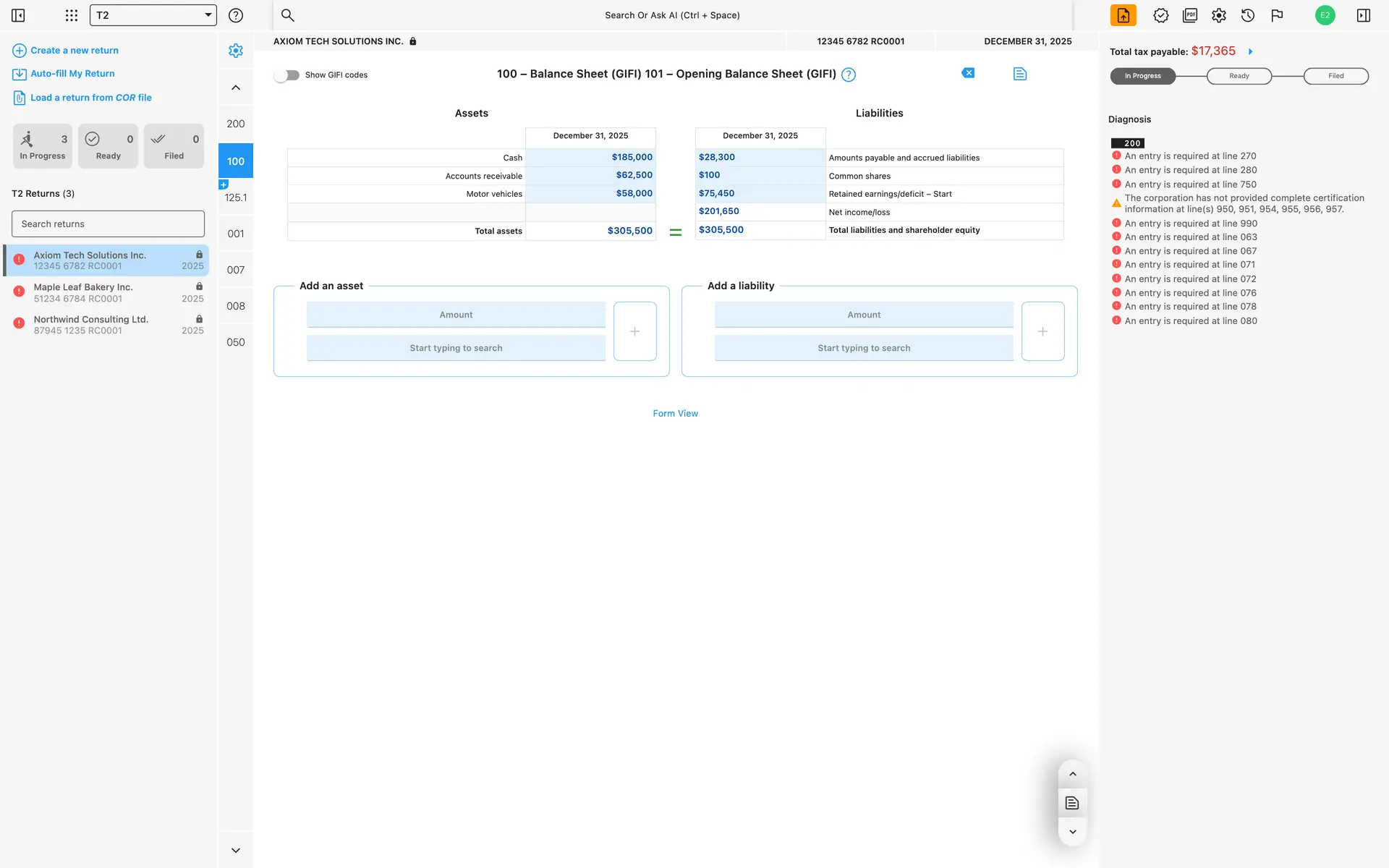
Balance sheet
Use the Balance Sheet View to see your assets and liabilities side-by-side. You can always switch to the Form View if you need to see all the GIFI items.
Assets = liabilities + shareholders' equity
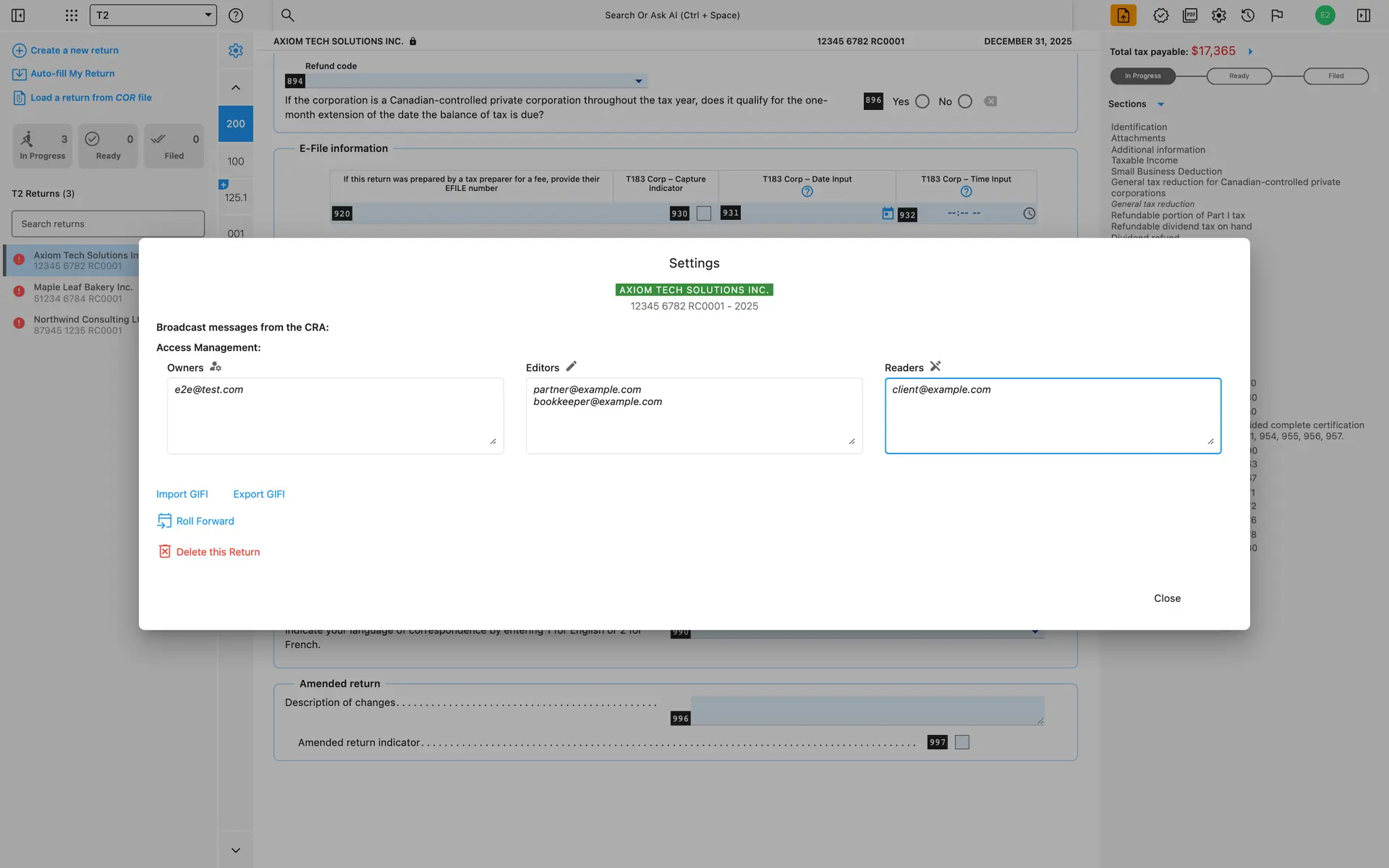
Share & collaborate
Add your colleagues, business partners, clients and others as Owners, Editors or Readers to your return.
They will be able to log in to AuraTax, see your return, and exercise only the rights they were granted
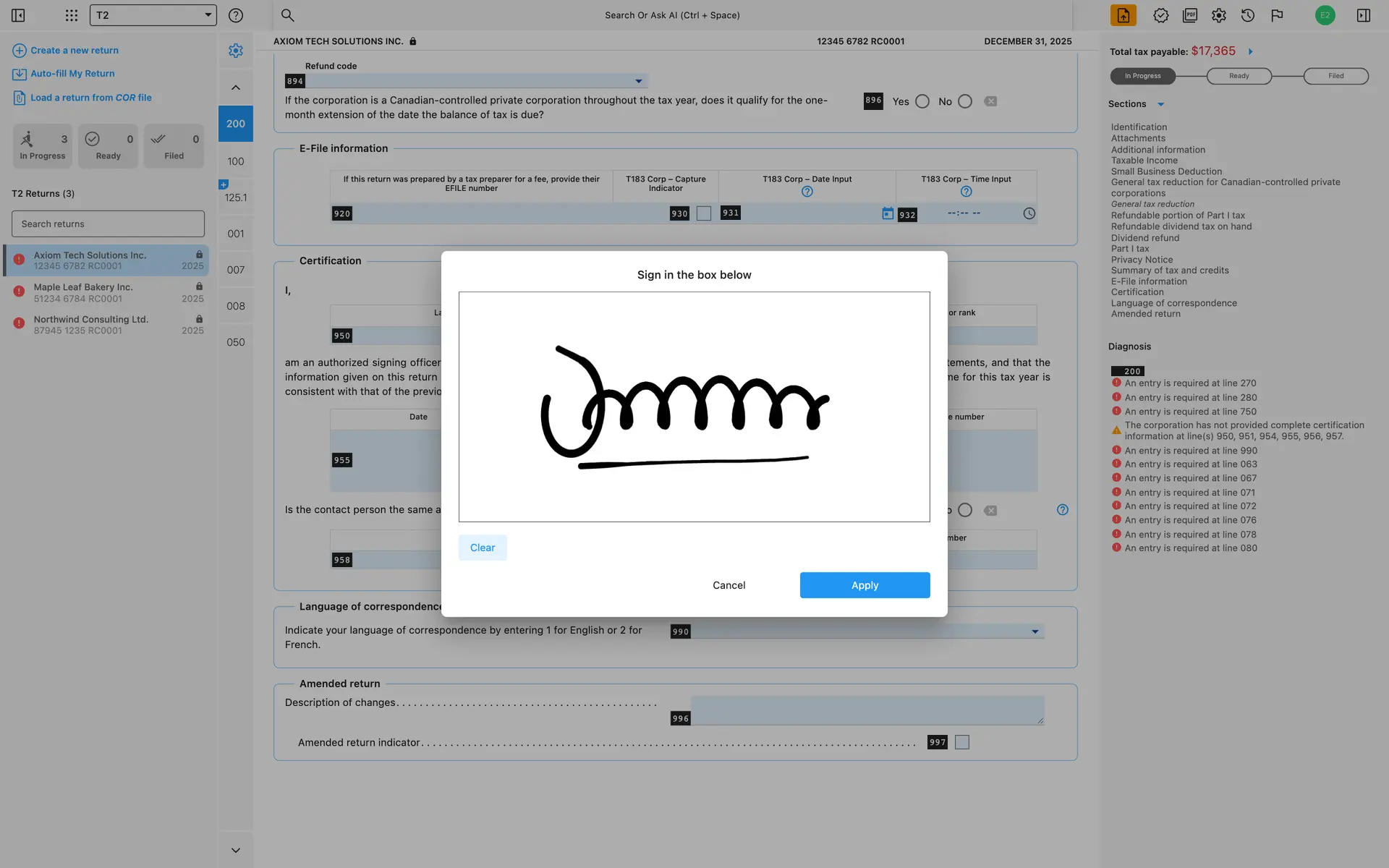
In-app signature
Sign your forms, or get your clients, partners and business stakeholders to sign directly within AuraTax
Once a user's signature is recorded, it can be reused in other Fields, Forms and Tax Programs, but never without the user assigning it manually
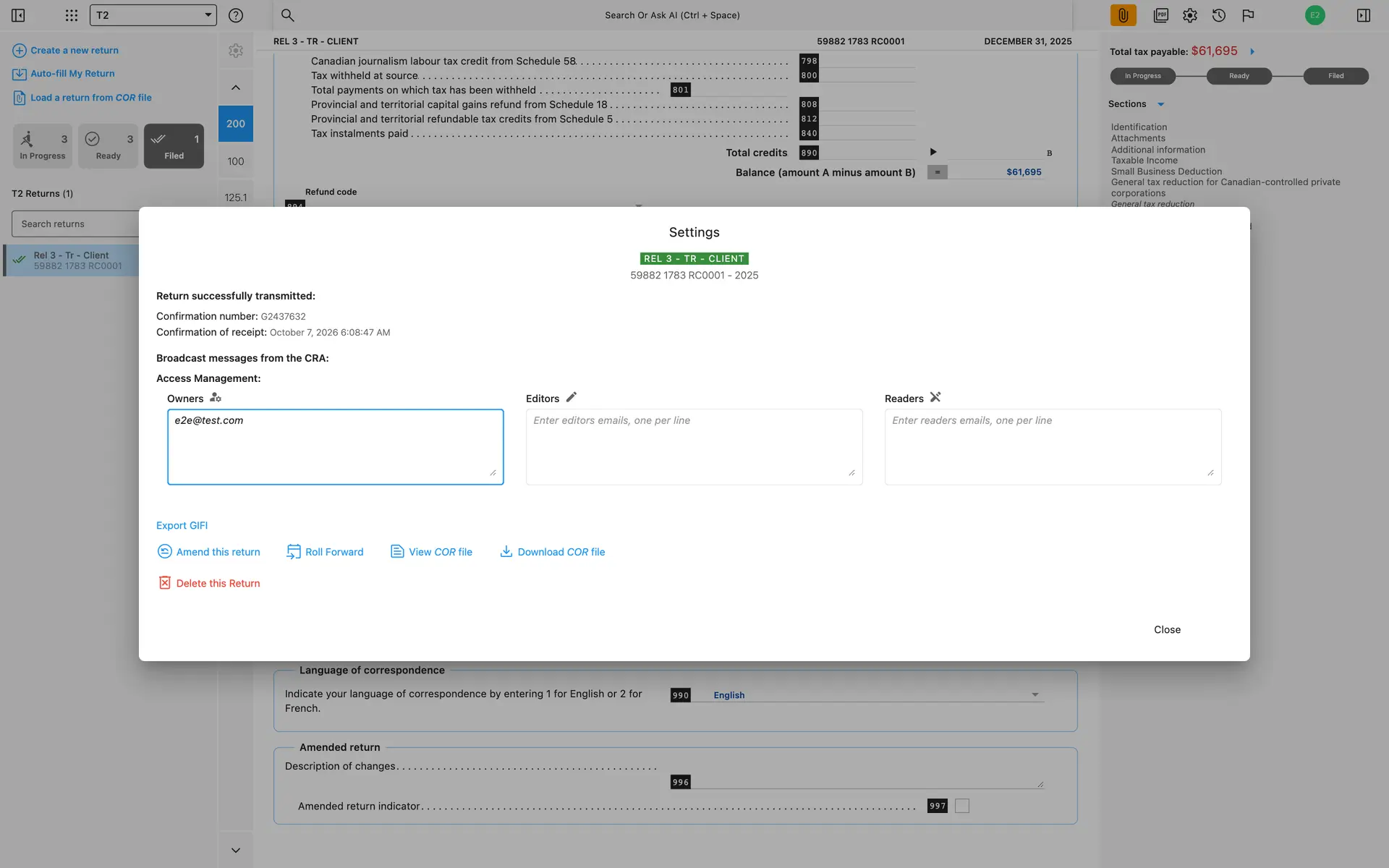
Unlimited amendments
Pay only for the initial transmission. Amendments are free and unlimited with AuraTax
Open the Settings window, and click on the Amend this return link. The system will mark your return as amended, where applicable, and allow you to modify and re-transmit.
Origin / report values
Navigate easily between fields and forms to see where auto-calculated values are coming from or going to.
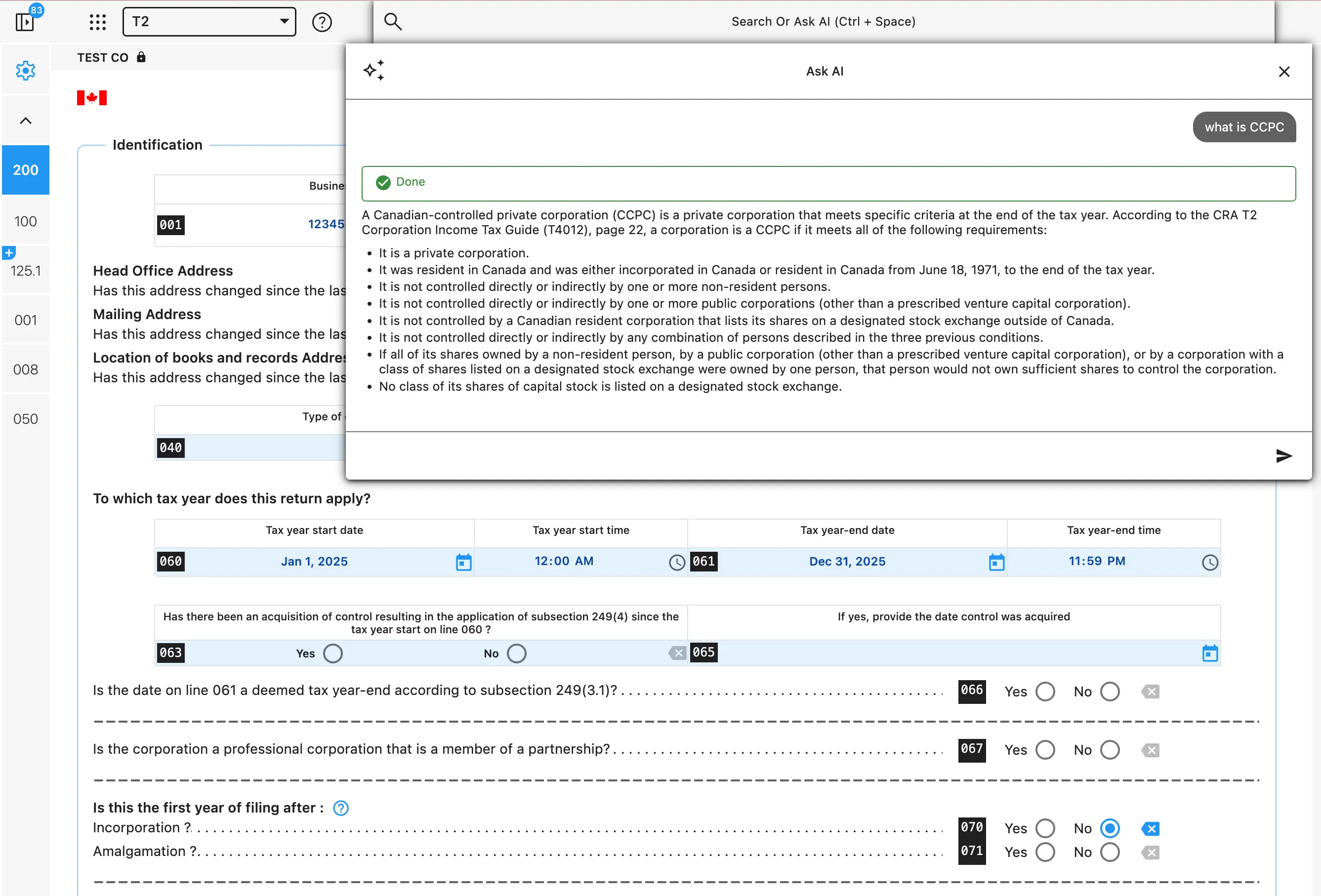
Ask AI
It already knows the return you have open
Press Ctrl + Space anywhere in a return and ask in plain words. It can see which schedules you have attached, the values sitting in them, and the validation errors still outstanding.
Find anything, and go there
“Where is line 300?” scrolls to the field and focuses it, the way the old search dropdown did — only you no longer have to know what it is called.
Ask what a field is for
Answers come from the same CRA-derived help text the field's own ? icon shows, so they match the form in front of you.
Look it up in the guide itself
Concept questions — what is a CCPC, refundable versus non-refundable Part I tax — are answered from the CRA T2 Corporation Income Tax Guide (T4012).
Attach a schedule, set a value, add a row
It can do the work too: create a return, attach or remove a schedule, fill a field, add a table row.
It never edits your return itself. Every change is applied by the app once you confirm it, through the same code path as the buttons you would have clicked — so validation and cross-field calculations run exactly as they always do.
Video library
How-to videos
Learn the ins and outs of AuraTax with our growing library of tutorial videos.
How to add a schedule.
How to add a schedule sequence.
How to add a signature.
How to amend a return.
How to auto-fill your return from a pre-existing return.
How to auto-fill your return.
How to cancel business consent.
How to create a return.
How to delete a return.
How to delete a schedule sequence.
How to export GIFI to CSV.
How to flag and unflag a return.
How to focus on a field with a validation error.
How to import GIFI from CSV.
How to input your E-file number and password.
How to load a return from a COR file.
How to navigate between schedule sections, validation errors and warnings.
How to obtain your web access code on T2.
How to pay per file.
How to pick a date from the date picker.
How to purchase a licence.
How to remove a schedule.
How to remove business consent.
How to search fields by code, name or actual value.
How to search schedules by code and name.
How to share a return.
How to show or hide GIFI codes.
How to switch between schedules.
How to view a return.
How to view the change history.
Resources
Tax forms
Access and download forms for your tax return type
Get in touch
Let's work together
Have a question or want to learn more? We'd love to hear from you.